Interface

Four bars, a set of panels and a timeline. Point at a number to see what an area does, click it to read more.

Create Bar

The Create Bar makes things instead of picking tools. Click a tile and the layer is there, centered in your composition, ready to animate.

  • Shapes & Text: Text, Rectangle, Circle, Star and the Polyline pen.
  • Layers: Solid, Adjustment Layer and Null.
  • 3D: Camera, Light, seven 3D Shapes (cube to torus), Polyline 3D for round tubes, and Particles. Drop a .glb file into the app to add a 3D model.

Only the two Polyline tools ask you to draw in the viewer first.

Textnew text, ready to type
Circlea round shape
Polylinedraw your own line or shape
Adjustment Layerits effects change all below
Cameraframe and fly through 3D
3D Shapecube, sphere, torus … or a .glb
Particlesa space full of drifting dots
The Create Bar: Shapes & Text, Layers and 3D12345678910111213
Rectanglea box in the middle of the comp
Starpoints and roundness to taste
Solidone color, full frame
Nullinvisible, moves its children
Lightspot, point, sun or HDRI
Polyline 3Da line becomes a round tube
  1. Text new text, ready to type
  2. Rectangle a box in the middle of the comp
  3. Circle a round shape
  4. Star points and roundness to taste
  5. Polyline draw your own line or shape
  6. Solid one color, full frame
  7. Adjustment Layer its effects change all below
  8. Null invisible, moves its children
  9. Camera frame and fly through 3D
  10. Light spot, point, sun or HDRI
  11. 3D Shape cube, sphere, torus … or a .glb
  12. Polyline 3D a line becomes a round tube
  13. Particles a space full of drifting dots

Workspaces

The switch at the top right rearranges the whole window for the job at hand.

  • Standard shows every panel.
  • 3D Space gives the viewer almost all the room and shows your scene from a free camera.
  • Cut widens the viewer and the timeline for editing footage.
  • Custom is yours: move panels wherever you like, and the layout is remembered.
Standardevery panel in view
Cuta wide timeline for editing
Renderexport the comp · Ctrl+M
The Workspaces switch with Standard, 3D Space, Cut and Custom, and the Render button12345
3D Spaceroom for your 3D scene
Customyour own panel layout
  1. Standard every panel in view
  2. 3D Space room for your 3D scene
  3. Cut a wide timeline for editing
  4. Custom your own panel layout
  5. Render export the comp · Ctrl+M

Render

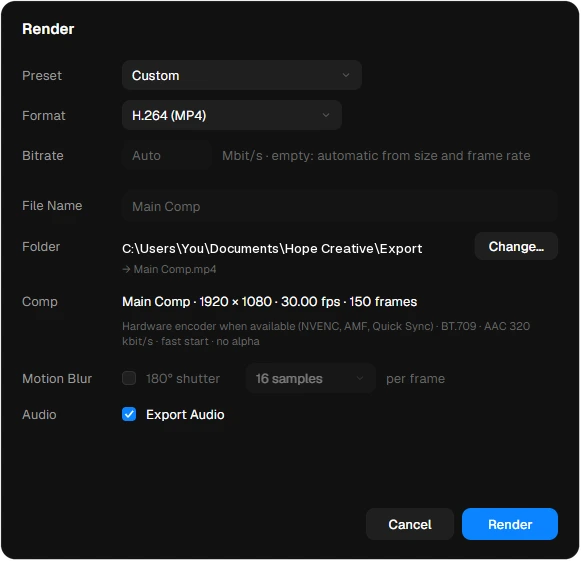
The Render button at the top right opens the export. Pick a Preset, or set the Format and Bitrate yourself, name the file and choose the folder.

  • Encodes on your graphics card when it can, so exports are fast.
  • Motion Blur with a 180° shutter and up to 64 samples per frame.
  • Export Audio puts the sound of the comp into the file.

Press Render again while it runs to stop it. Shortcut Ctrl M.

The Render dialog with preset, format, bitrate, file name, folder, motion blur and audio

Composition Bar

The Composition panel is your canvas: select, move, rotate and reshape layers right in the picture. The bar floating under it holds what you change while you work.

  • Zoom and Resolution: Auto lowers the preview resolution only while it has to, so playback stays smooth.
  • Transparency grid and guides.
  • 3D Renderer: choose 2.5D, Rasterizer or Raytracer, the anti-aliasing and the tone mapping.
  • Physics appears as soon as the comp has physics layers.
  • Playback and the timecode.
Zoomclick to fit the comp
Transparency Grida checkerboard behind see-through parts
3D Renderer2.5D, Rasterizer or Raytracer
Timecodewhere the playhead is
The Composition Bar with zoom, resolution, transparency grid, guides, 3D Renderer, playback and timecode1234567
Resolutionfull, half … or auto
Guidesshow the guides
Playbackstart, back, play, on, end
  1. Zoom click to fit the comp
  2. Resolution full, half … or auto
  3. Transparency Grid a checkerboard behind see-through parts
  4. Guides show the guides
  5. 3D Renderer 2.5D, Rasterizer or Raytracer
  6. Playback start, back, play, on, end
  7. Timecode where the playhead is

Timeline Bar

The row of icons above the timeline keeps the editing tools one click away.

  • Volume and audio scrubbing, then Add Marker at the playhead.
  • Compact hides the switch columns for a wider time area; Fades makes layers tall, with handles to fade picture and sound in and out.
  • Undo, Redo, Copy, Paste, Duplicate.
  • Split Layer, Ripple Cut (cut a stretch out and close the gap) and Pre-compose.
  • Trim In and Trim Out to the playhead.
  • Caching, Curves (show value curves of animated properties), Snapping and Linked selection, which keeps a video’s picture and sound together.
Timethe playhead’s time, frame and fps
Add Markera marker at the playhead
Undo / Redoone step back or forward
The Timeline Bar with the timecode and its editing tools12345
Soundvolume, and hear it as you drag
Compact and Fadesfewer columns, fade handles
  1. Time the playhead’s time, frame and fps
  2. Sound volume, and hear it as you drag
  3. Add Marker a marker at the playhead
  4. Compact and Fades fewer columns, fade handles
  5. Undo / Redo one step back or forward
Copy · Paste · Duplicatethe selected layers
Ripple Cutcut out, close the gap
Trim In / Outstart or end at the playhead
Curvessee the value curves
Linked Selectionpicture and sound together
The Timeline Bar with the timecode and its editing tools123456789
Split Layercut at the playhead
Pre-composelayers into a new comp
Cachingplay smoothly from RAM
Snappingsnap to keys and edges
  1. Copy · Paste · Duplicate the selected layers
  2. Split Layer cut at the playhead
  3. Ripple Cut cut out, close the gap
  4. Pre-compose layers into a new comp
  5. Trim In / Out start or end at the playhead
  6. Caching play smoothly from RAM
  7. Curves see the value curves
  8. Snapping snap to keys and edges
  9. Linked Selection picture and sound together

Layer columns

Each layer in the timeline has a row of switches next to its name.

  • Physics turns a shape, text or SVG layer into a physical body.
  • 3D moves the layer into 3D space.
  • Mode is the blend mode: 17 of them, from Multiply and Screen to Overlay and Luminosity.
  • Track Matte uses another layer’s alpha or brightness as a stencil, normal or inverted.
  • Parent makes the layer follow another one. Drag the spiral onto a layer or pick it from the list.

Every layer type has its own color, so you can read a busy timeline at a glance.

Visibilityshow or hide the layer
Labela color per layer type
Physicsmake it a physical body
Modethe blend mode
Parentfollow another layer
The layer columns Physics, 3D, Mode, Track Matte and Parent123456789
Audiomute its sound
Layer Namenumber and name; open it for its properties
3Dmove it into 3D space
Track Matteanother layer as a stencil
  1. Visibility show or hide the layer
  2. Audio mute its sound
  3. Label a color per layer type
  4. Layer Name number and name; open it for its properties
  5. Physics make it a physical body
  6. 3D move it into 3D space
  7. Mode the blend mode
  8. Track Matte another layer as a stencil
  9. Parent follow another layer

Panels

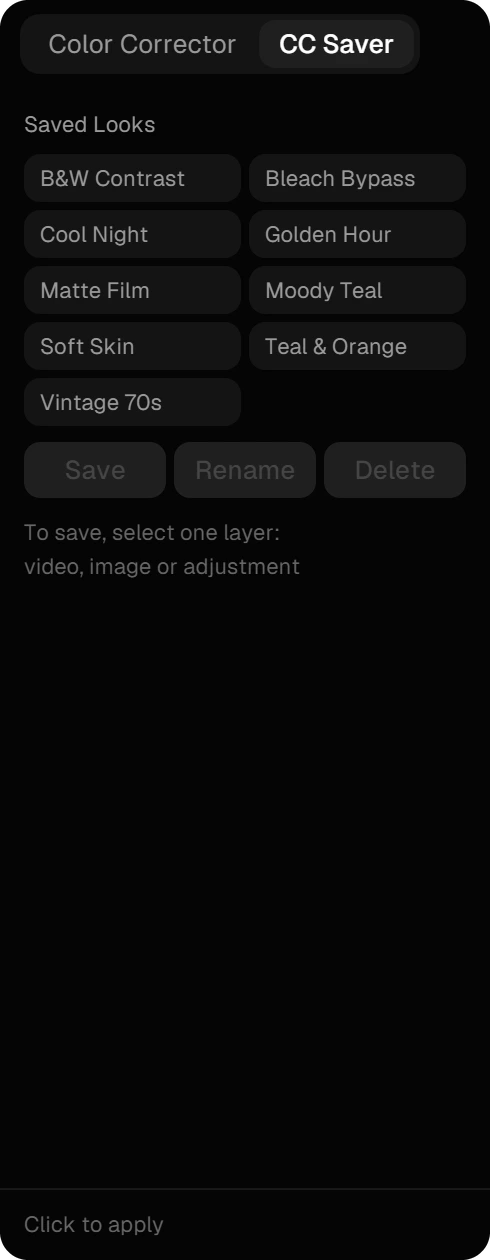
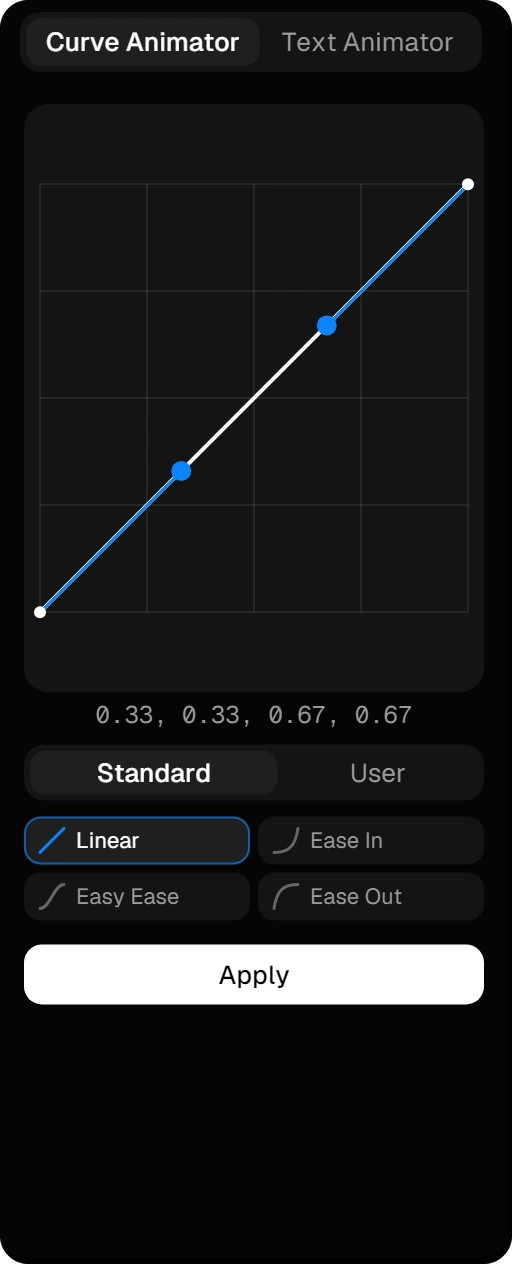
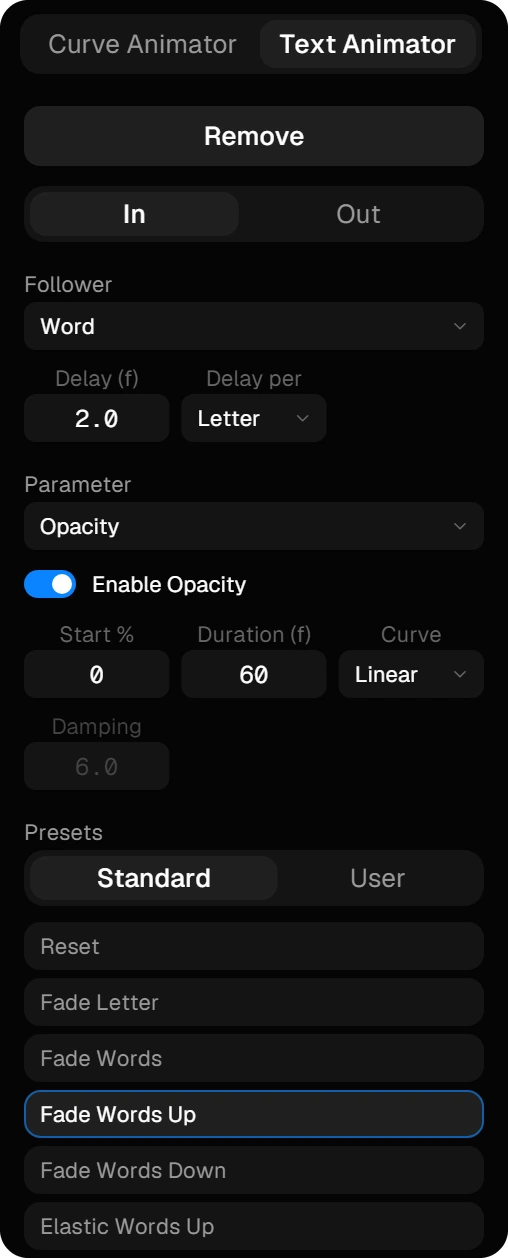
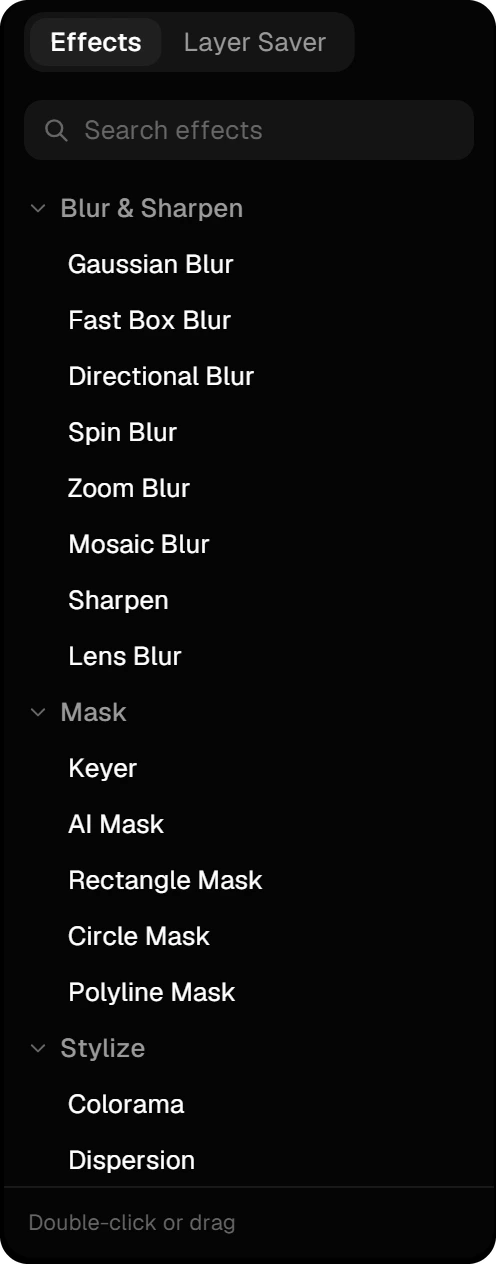
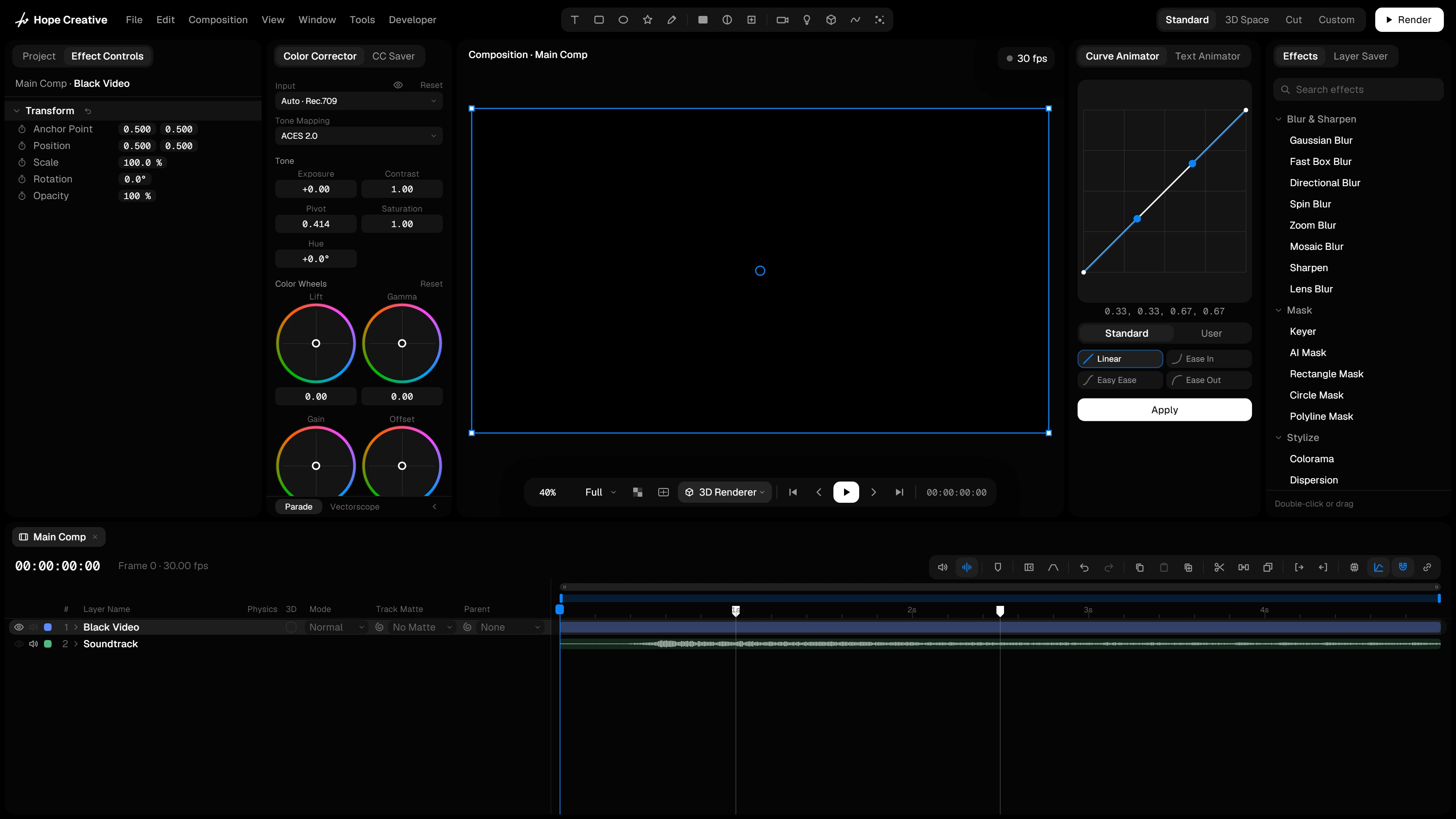
Panels come in pairs that share a tab: Project and Effect Controls, Color Corrector and CC Saver, Curve Animator and Text Animator, Effects and Layer Saver. The Composition and the Timeline are always there.

  • Switch a pair off and the viewer takes the room.
  • In the Custom workspace, drag a panel by its tab or grip and dock it to any side of another panel or the window. The layout saves itself.

Project and Effect Controls

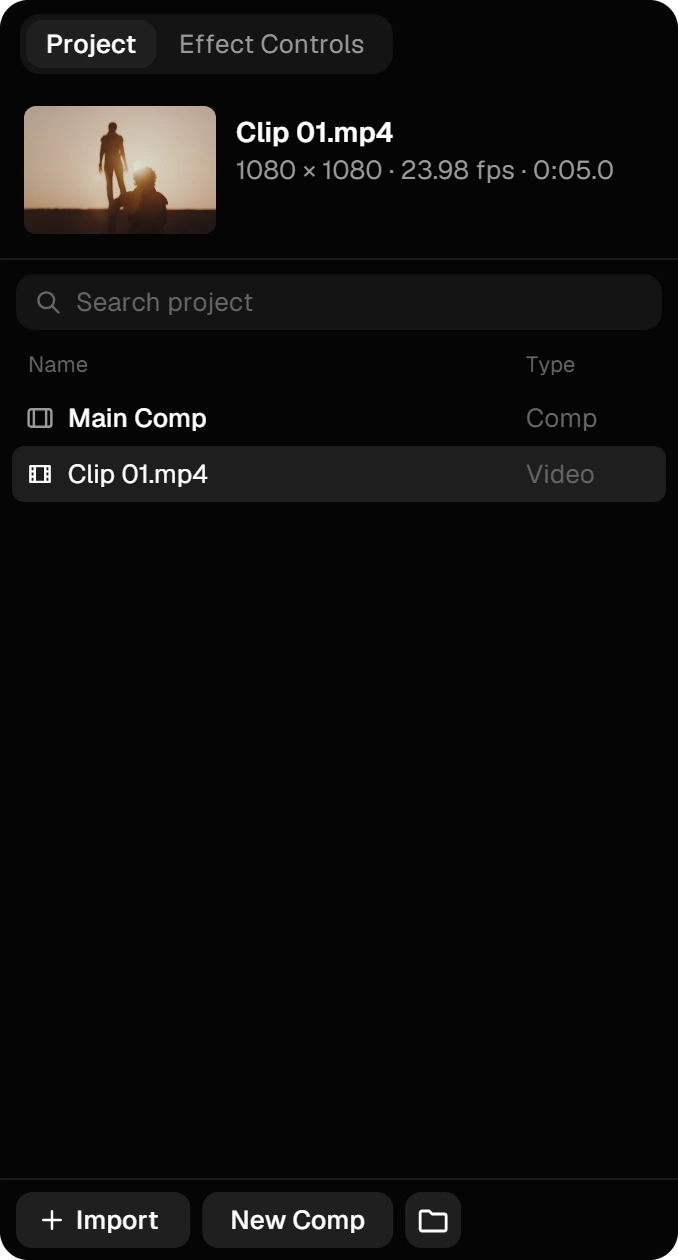
Project holds what your project is made of: comps, footage and folders, with a preview and the details of the selected item at the top. Search it, bring files in with Import or by dropping them, start a New Comp, and drag any item into the timeline. Right-click a video to make a proxy.

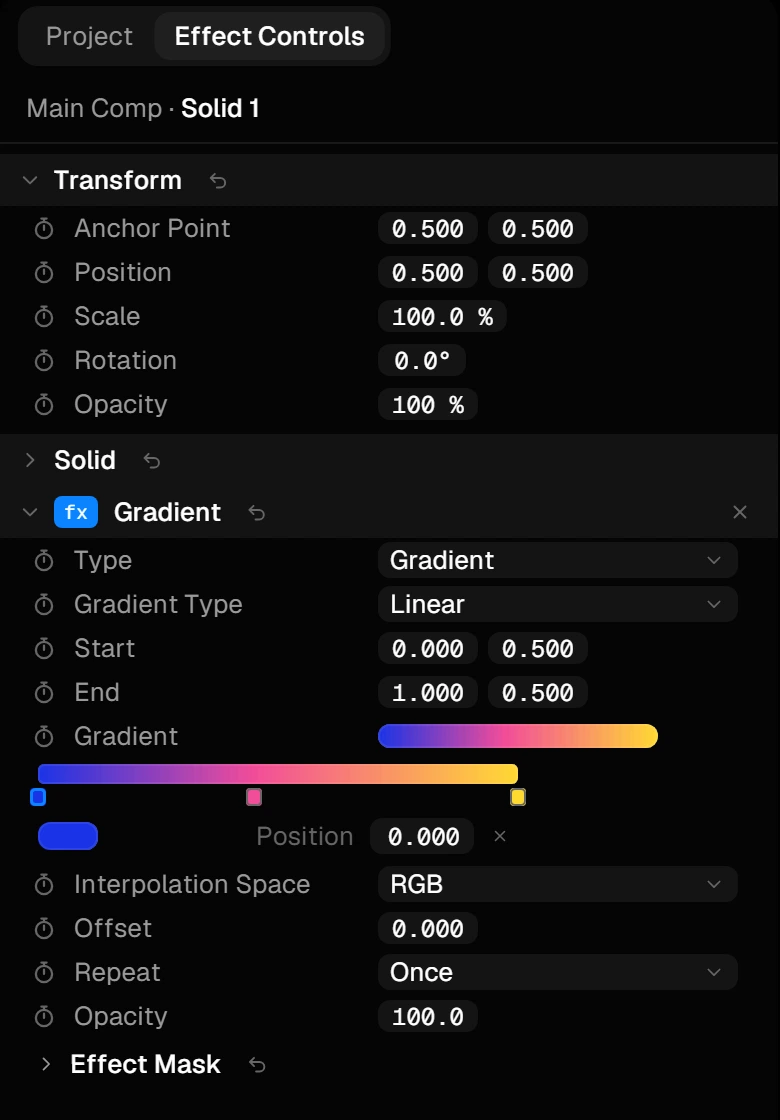
Effect Controls shows everything about the selected layer: Transform at the top and open, then its contents and every effect you added, in the same groups as in the timeline.

  • Drag a number sideways to change it, or click it to type. The stopwatch sets a keyframe.
  • Select several layers and change them together.
  • Copy and paste effects between layers, or only their expressions.
The Project panel with a comp and a video, the search field and the Import and New Comp buttons
The Effect Controls panel with the Transform group and a Gradient effect

Color Corrector and CC Saver

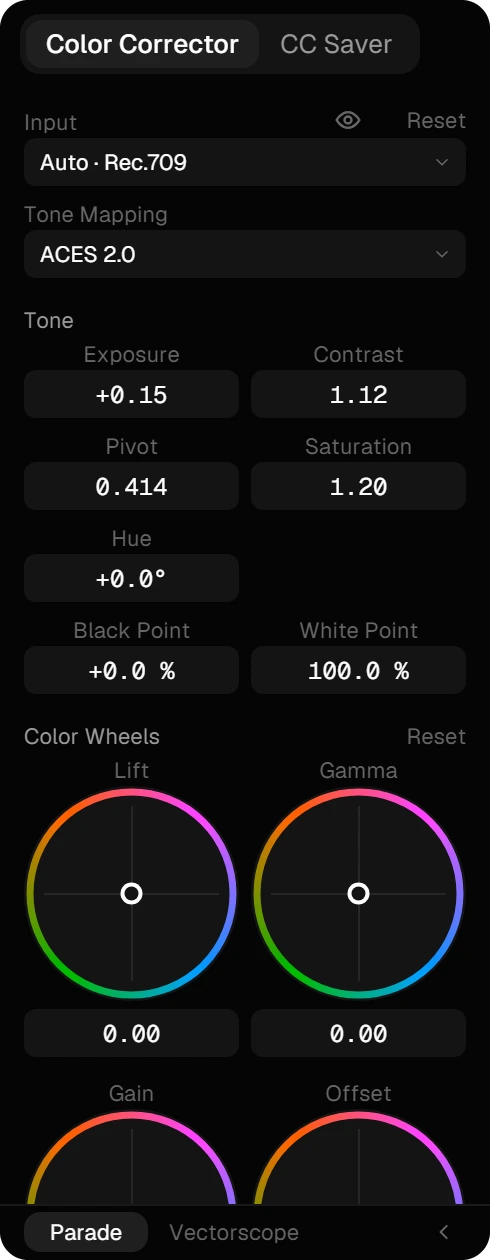
The Color Corrector grades the selected video, image or adjustment layer, top to bottom: the Input profile of the footage, Tone Mapping, the tone controls, the Color Wheels and, at the bottom, the scopes.

The CC Saver keeps your looks. Save takes the grade of the selected layer together with its effects; a click on a look applies it to every selected layer. All about color correction

The Color Corrector panel with input, tone mapping, tone controls and color wheels
The CC Saver with saved looks such as Golden Hour, Moody Teal and Matte Film

Curve Animator and Text Animator

The Curve Animator sets how a move speeds up and slows down. Select keyframes in the timeline, pick a preset or drag the two handles, and press Apply. Standard holds the built-in eases, User the ones you save. Try it yourself

The Text Animator animates the selected text layer in and out, letter by letter, word by word or line by line. Pick a Follower and a delay, then what moves: opacity, position, size, rotation, color or blur, each with its own curve. Or start from a preset. Try it yourself

The Curve Animator panel with the curve graph, presets and the Apply button
The Text Animator panel with In and Out, the follower, the parameter and the presets

Effects and Layer Saver

The Effects panel lists every effect by category, from Blur & Sharpen to Stylize, and finds any of them as you type. Double-click an effect to add it to the selected layer, or drag it onto a layer in the timeline or the viewer. Your plug-ins appear here too.

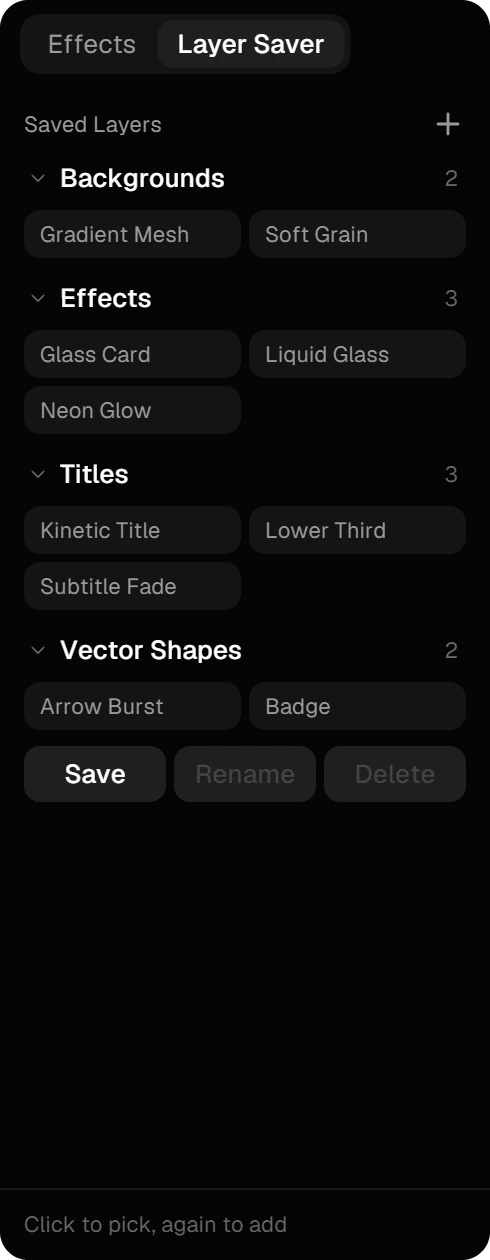
The Layer Saver keeps layers you’ll need again, with their keyframes, effects and everything else. Sort them into categories, click one to pick it and again to add it to the comp. More about the Layer Saver

The Effects panel with the search field and the categories Blur & Sharpen, Mask and Stylize
The Layer Saver with saved layers in the categories Backgrounds, Effects, Titles and Vector Shapes

Seen enough of the layout? See what you can make with it.

Explore the features